Web app screens — routes & fields
Overview of the screens in the Yres web app, with the actual route and the main form fields per screen. Useful for mapping the documentation to what you see in the app.
How routing works
The Yres web app chooses its navigation based on the (sub)domain you log in to. A single codebase serves multiple scopes:
| Scope | When | Example host |
|---|---|---|
| organization | a customer subdomain | acme.<host> |
| front | account selection / logged out | the front host |
Because the organization is already determined by the subdomain, all org screens use bare paths without an organization id: /sources, /loadmanagement/monitoring, /admin/panel, and so on. You won't find these routes as /organizations/:organizationId/... — that is a deprecated route variant that is no longer in use.
Routes are relative to the org subdomain (e.g. acme.<host>/admin/announcements). The web app is an SPA: a section's sub-navigation only appears once you click its section icon on the left. Some screens are version-gated (see the version notes below) or only visible when there are multiple environments.
Shared chrome (every logged-in screen)
Every logged-in screen shares the same "shell": a fixed top bar, an icon column on the left and a contextual sub-link sidebar.
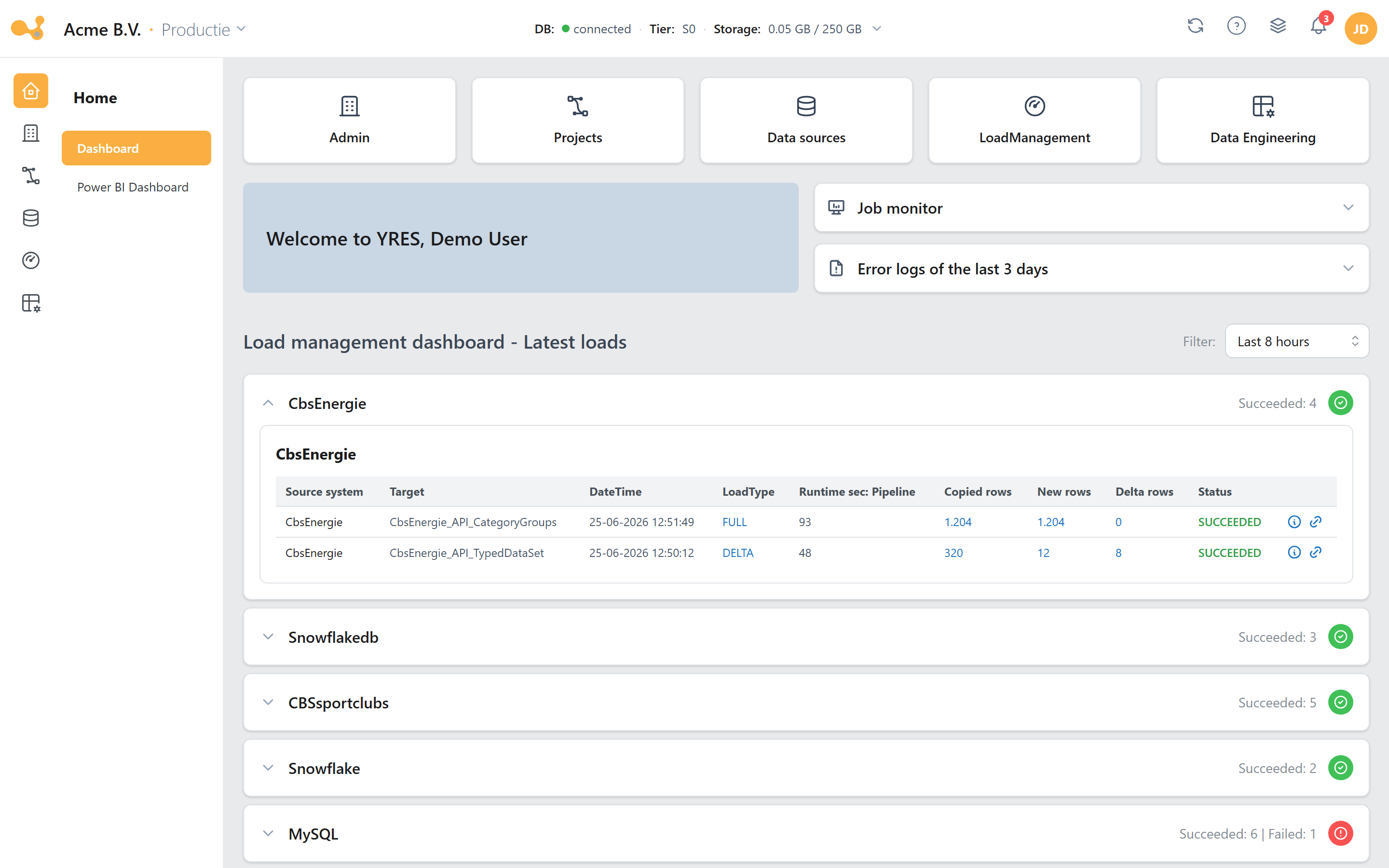
The shared chrome around every screen: top bar, icon column and contextual sub-links. The numbered markers refer to the explanation below.
- Logo + organization title — shows the organization name; clicking it takes you to Home (
/). - Environment switcher — only visible with more than one environment; switches between Development / Test / Production. The switcher is disabled on non-environment-bound routes and then snaps back to
dev. - Help "?" — opens the Yres wiki at
wiki.yres-dwh.app. - Icon column — the main sections: Home, Admin, Projects, Data sources, Load management, Data engineering. Permission- and version-gated; Projects is hidden for a single-environment organization.
- Sub-link sidebar — the screens within the selected section (resizable, drag the right edge).
- Actions on the right — Refresh, monitored jobs, notifications and the user menu.
Home
| Screen | Route | Key fields |
|---|---|---|
| Dashboard | / | welcome card · quick-nav tiles · monitored jobs · "Error logs (3 days)" · load history table |
| Power BI dashboard | /admin/powerBiDashboard | embedded Power BI report view |
Data sources
| Screen | Route | Key fields |
|---|---|---|
| Sources | /sources | "Create source" (wizard) · table (type · name · credentials_expiry) · connectivity test |
| Source detail | /sources/:sourceId | dispatches to UsedTables / UsedFiles / UsedRestService (see below) |
| Type mapping (per source) | /sources/:sourceId/typemapping | "Generate Typemapping" · SQL editor on LoadManagement.TypeMapping (WHERE SourceSystem = <source>) |
The detail screen /sources/:sourceId automatically picks the right view based on the source type:
- Database sources → Used tables: metadata card (
GetMetaData - <source>), Refresh metadata and Load data (all) buttons, and the table fromLoadManagement.vwUsedTableswith, among others,SourceSchema,SourceTable,DataPlatform,LoadType,DeltaColumn,LatestRecord,TargetTable. - File sources (e.g.
AzureBlobStorage) → Used files: columns such asfileName,Sheet,CellRange,ColumnDelimiter; Upload File only for blob sources in dev. - REST sources (
RestService) → Used REST service:OverwriteSchema,OverwriteTable,SourceSchema,SourceTable,LoadType,pageSize.
Load management
| Screen | Route | Key fields |
|---|---|---|
| Run pipelines | /loadmanagement/runPipelines | pipeline list · date range (runEnd) · status filter · (dynamic workflow) Source/Schema/Table cascade · "Start pipeline" |
| Triggers | /loadmanagement/triggers | table: Name · status · frequency · on · time · timezone · actions (start/stop/delete) |
| Monitoring | /loadmanagement/monitoring | Targets tree (Source→Schema→Table) · runs grid (Status · DateTime · Load type · Runtime · Copied · New · Delta) · "Reset table" · rollback |
| Design master pipeline | /loadmanagement/masterPipelines | master pipeline design (version ≥1.53) |
| Master pipeline detail | /loadmanagement/masterPipelines/:masterPipelineId | — |
| Integration runtimes | /loadmanagement/integration-runtimes | name · description · type |
| Datawarehouse processes | /loadmanagement/datawarehouse-processes | — |
| Datawarehouse queries | /loadmanagement/datawarehouse-queries | — |
For Triggers, the timezone of the logged-in user is used (not a fixed UTC+1), despite what the UI hint suggests.
Data engineering
| Screen | Route | Key fields |
|---|---|---|
| View persistence | /dataengineering/viewpersistence | DestinationSchemaName · DestinationTableName · Level · Delta · "Run materialize view (all)" |
| Database objects | /dataengineering/objecthistory | object tree (schema → type → object) · SQL source / "Compare versions" diff · right-click menu: Add to change (project → change), Add to change with dependencies, Delete with change, View dependencies (graph), View change history |
Projects & Changes
This entire section is hidden for a single-environment organization. Projects/Changes only appear from two environments onward.
| Screen | Route | Key fields |
|---|---|---|
| Projects | /projects | Name · Description · DueDate · Creator · status text |
| Changes | /changes | filters (Project · "Only show open projects" · Where environment · Has status) · changes table (Name · Description · DueDate · ReleasedDate · Status overview · NextStep · Dependencies · Actions) · "Create change" · actions via the per-change ☰ menu: Update/Delete, per-environment submenu (dev ▸ release change; target env ▸ Reimport/Reinstall change), View dependencies (graph) and Logs |
There are no separate "Release change" or "Install change" screens anymore. Release, Import and Install are actions on the selected change within the Changes screen (/changes), contextual to its status: an open change shows Release ([Change].[spRelease]), a released change shows Import ([Change].[spImport], DWH only) and Install ([Change].[spInstall] + the publish-datafactory pipeline, DWH + ADF). You manage scripted/custom objects via Database objects in Data engineering (/dataengineering/objecthistory), where you add an object to a change.
Admin (organization)
| Screen | Route | Key fields |
|---|---|---|
| Org panel (users & roles) | /admin/panel | users table (name · email · role · SSO) · roles table |
| DWH settings | /admin/dbsettings | Setting · friendly value · per-setting editor (tier combobox, schema names, storage min/max) |
| Global type mapping | /admin/globaltypemapping | SQL editor on LoadManagement.GlobalTypeMapping |
| Update environments | /admin/environments | environment cards · DWH version · latest CI/CD State/Result/Ran · deploy confirmation |
| Theme | /admin/theme | upload logo · upload background · blur · primary_color · light/dark/auto · live preview |
| Announcements | /admin/announcements | title · start date · start time · end date · end time · notify users · priority · body |
| Audit logs | /admin/auditlogs | date (filter) |
| Databases | /admin/databases | host · db_name · server_name · port · username · password |
| Secrets | /admin/secrets | — |
| Power BI credentials | /admin/powerBiCredentials | — |
| Firewall | /admin/firewall | — |
| Health checks | /admin/healthchecks | results from [Maintenance].[vwYresChecks] (version ≥1.51) |
| Change overwrites | /admin/changeoverwrites | (multi-env, version ≥1.54) |
| DWH logs | /admin/dwhlogs | date (filter) · stored procedure filter · log level |
| Azure resources | /admin/azure/resources | — |
| Rebuild | /admin/rebuild | (system-admin) |
| Shared integration runtimes | /admin/shared-integration-runtimes | name · description (version ≥1.55) |
| Settings | /settings | — |
| Deployment status | /deployments/:deploymentId/status | live status of a running deploy |
The Upgrade screen (/admin/upgrade, for bumping the web app major version) exists as a route and component, but the sidebar link to it is commented out. As a result it is not normally reachable via the live navigation.
Auth (front scope, logged out)
| Screen | Route | Key fields |
|---|---|---|
| Login | /login | email · password · "Sign in" · "Forgot password?" |
| Forgot password | /forgot-password | email · "Reset password" |
| Reset password | /reset-password/:token | Email · Password (min 12) · Confirm Password |
| Register (invite) | /register | name · email (pre-filled from the invitation) |
Account (user)
| Screen | Route | Key fields |
|---|---|---|
| User settings | /user/settings | Name · Timezone · Date format · Language · change password |
| DWH logs (per user) | /user/logs | date range · stored procedure filter · log level · "Clear error count" |
| Feedback | /user/feedback | submit feedback |
This overview is derived from the live web app code (yres_frontend). Screens, routes and fields may change per release, and the web app is out of scope for this data warehouse documentation. Treat this page as reference; when in doubt, what the app actually shows takes precedence. Re-capture with the tool in tools/playwright-capture/ if the app has changed.